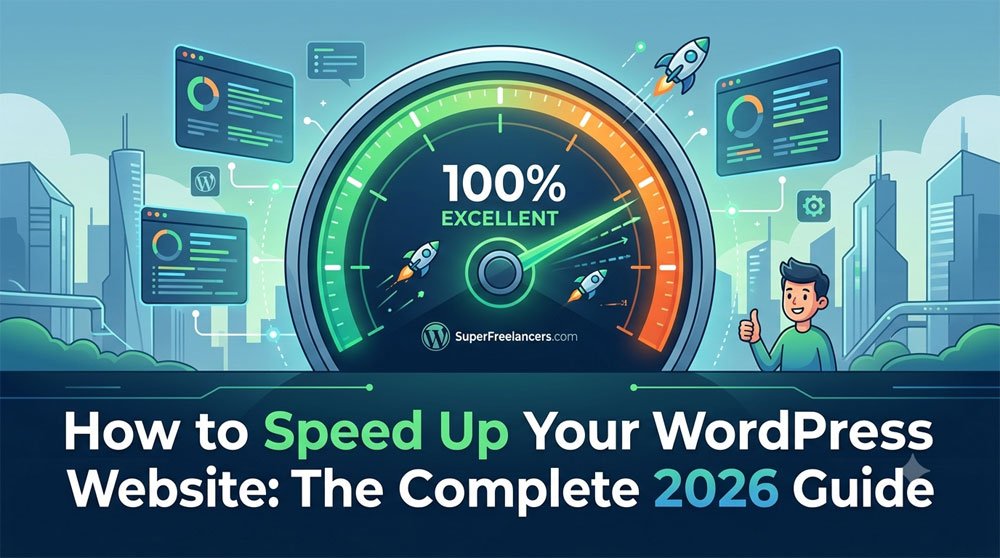
How to Speed Up Your WordPress Website: The Complete 2026 Guide
A slow WordPress site is quietly killing your traffic, your rankings, and your revenue. If your pages take more than 3 seconds to load, over half your visitors are already gone.
The good news? You do not need to be a developer to fix it. This guide walks you through every proven method to speed up a WordPress website, from beginner-friendly quick wins to advanced server-level optimizations used by professional agencies.
Whether you are running a blog, an online store, or a business site, the steps below will help you dramatically improve your WordPress page load time, pass Google's Core Web Vitals, and rank higher in search results.
Why You Can Trust This Guide
This guide is built on hands-on experience optimizing dozens of WordPress sites, real-world testing with tools like Google PageSpeed Insights, GTmetrix, and Lighthouse, and analysis of current best practices shared by the WordPress performance community. We do not recommend anything we have not personally tested.
Quick Summary: Top Ways to Speed Up WordPress
- Choose a fast, managed WordPress hosting provider
- Install a caching plugin like WP Rocket or LiteSpeed Cache
- Compress and lazy-load all images
- Use a Content Delivery Network (CDN)
- Minify CSS, JavaScript, and HTML files
- Limit and audit your installed plugins
- Optimize your WordPress database regularly
- Use a lightweight, performance-focused theme
- Upgrade to PHP 8.2 or higher
- Fix render-blocking resources

Why WordPress Site Speed Actually Matters in 2026
Site speed is no longer just a nice-to-have. Google officially uses Core Web Vitals as a ranking signal, which means a slow website directly hurts your visibility in search results.
The numbers are striking. A 1-second delay in page load time can reduce conversions by up to 7%. For an e-commerce site making $10,000 per month, that is $700 lost every month from a single performance issue.
Google's three Core Web Vitals metrics measure what actually matters to real users:
LCP (Largest Contentful Paint)
Measures how fast your main content loads. Target: under 2.5 seconds.
INP (Interaction to Next Paint)
Measures responsiveness to user input. Target: under 200 milliseconds.
CLS (Cumulative Layout Shift)
Measures visual stability. Target: a score below 0.1.
Step 1: Start With the Right WordPress Hosting
Your hosting provider is the single biggest factor in your site's performance. No plugin can fully compensate for a slow server. This is where most beginners make their first mistake.
Shared hosting plans are cheap for a reason. When your site shares server resources with hundreds of other websites, TTFB (Time to First Byte) suffers. Google recommends keeping TTFB under 200 milliseconds for optimal performance.
What to Look for in a Fast WordPress Host
- LiteSpeed or Nginx server technology instead of Apache
- PHP 8.2 or 8.3 support for major speed improvements
- SSD NVMe storage for faster disk read/write speeds
- Server-side caching built into the hosting plan
- Data center locations close to your target audience in the USA or Canada
- Free SSL certificate included (HTTPS is faster with HTTP/2)
Recommended Hosts for Speed: SiteGround, Kinsta, WP Engine, Cloudways, and Rocket.net consistently top performance benchmarks for WordPress sites in North America.
Step 2: Install a Caching Plugin to Speed Up WordPress
Caching is the most impactful single change you can make after choosing good hosting. A caching plugin stores a static version of your pages so WordPress does not have to rebuild them from scratch on every visit.
Without caching, every page load triggers PHP execution, database queries, and asset processing. With caching enabled, returning visitors get a pre-built HTML file served in milliseconds.
Best WordPress Caching Plugins Compared
| Plugin | Best For | Price | Ease of Use |
|---|---|---|---|
| WP Rocket | Most users, all skill levels | From $59/year | |
| LiteSpeed Cache | LiteSpeed hosting users | Free | |
| W3 Total Cache | Developers and advanced users | Free / $99/year Pro | |
| WP Fastest Cache | Beginners on a budget | Free / $49+ Pro | |
| NitroPack | Hands-off, all-in-one optimization | From $21/month |
For most WordPress users, WP Rocket is the top recommendation. It works out of the box with minimal configuration and handles page caching, browser caching, GZIP compression, and database cleanup all in one dashboard.

Step 3: Optimize Images for Faster Load Times
Unoptimized images are the number one cause of slow WordPress websites. A single high-resolution photo can be 5MB or more. Multiply that by 20 images per page and you have a serious performance problem.
The goal is to serve each image at the correct size, in a modern format, and only when the user needs it. This alone can cut your page weight by 60% or more.
Image Optimization Checklist
- Convert images to WebP format. WebP files are 25 to 35% smaller than JPEG with the same visual quality. Use a plugin like ShortPixel or Imagify to bulk convert your library.
- Enable lazy loading. Images below the fold only load when the user scrolls to them. This dramatically reduces initial page weight.
- Set explicit width and height attributes on every image tag. This prevents layout shift (CLS) while images load.
- Resize images before uploading. Never upload a 4000px wide photo for a 800px blog column. Resize first in a tool like Squoosh or Canva.
- Preload your LCP image. Add a preload link tag for the largest visible image on page load to improve your Largest Contentful Paint score.
Step 4: Use a CDN to Deliver Content Faster
A Content Delivery Network (CDN) is a network of servers spread across the globe. When someone visits your site, the CDN delivers your static files (images, CSS, JavaScript) from the server closest to them.
If your server is in New York and a visitor is in Vancouver, a CDN can cut their load time in half by serving files from a Seattle or Vancouver edge node instead.
Top CDN Options for WordPress
- Cloudflare (Free plan available, excellent for most sites)
- BunnyCDN (Affordable, excellent performance, pays-per-usage)
- Fastly (Enterprise-grade, used by major publishing platforms)
- QUIC.cloud (Works natively with LiteSpeed Cache plugin)
- KeyCDN (Great value for small to mid-size WordPress sites)
Pro Tip: Cloudflare's free plan with the APO (Automatic Platform Optimization) add-on for WordPress (just $5/month) can dramatically improve TTFB and LCP scores. It caches full HTML pages at edge nodes worldwide.
Step 5: Minify CSS, JavaScript, and HTML
Every WordPress theme and plugin adds CSS and JavaScript files to your pages. Over time, these files pile up and create significant load overhead. Minification removes unnecessary whitespace, comments, and characters from these files to reduce their size.
You should also enable GZIP or Brotli compression at the server level. This compresses files before sending them to browsers, often reducing transfer size by 70% or more.
Most good caching plugins handle minification automatically. In WP Rocket, you will find these options under the File Optimization tab. In LiteSpeed Cache, check the Page Optimization settings.

Step 6: Audit and Reduce Your WordPress Plugins
Every active plugin adds JavaScript, CSS, PHP processing, and database queries to your site. More plugins do not always mean more problems, but poorly coded or unnecessary plugins absolutely do.
A plugin audit is one of the fastest ways to find hidden performance killers. Use the Query Monitor plugin to see exactly which plugins are adding the most database queries and execution time.
Plugin Audit Action Plan
- Delete plugins you no longer use. Deactivating is not enough. Inactive plugins still occupy server space and can introduce security vulnerabilities.
- Replace heavy plugins with leaner alternatives. Contact Form 7 is lighter than Gravity Forms for simple use cases. Yoast has a lighter SEO configuration than All-in-One SEO for some setups.
- Disable plugin scripts on pages where they are not needed. The Perfmatters plugin lets you disable specific plugin scripts per page, reducing unnecessary asset loading.
Step 7: Choose a Lightweight WordPress Theme
Your theme is the foundation of every page. A bloated multipurpose theme loaded with features you never use is one of the most common causes of poor performance scores on new WordPress sites.
Lightweight themes are built lean by design. They load fewer scripts, use cleaner markup, and score well out of the box on PageSpeed Insights even before any optimization.
Want to learn more about building a fast WordPress site from the ground up? Read our full guide: How to Build a WordPress Website Without Coding.
Step 8: Upgrade PHP and Optimize Your Database
Upgrade Your PHP Version
PHP is the programming language that powers WordPress. Upgrading from PHP 7.4 to PHP 8.2 can improve execution speed by up to 40%, according to official WordPress benchmarks.
You can update your PHP version from your hosting control panel (cPanel, Plesk, or your host's custom dashboard). Always test on a staging site first and make sure all your plugins are compatible.
Clean Up Your WordPress Database
Over time, your WordPress database fills up with post revisions, spam comments, transients, and orphaned metadata. A bloated database slows down every query your site makes.
Use WP-Optimize to clean, compress, and schedule regular database maintenance. It is free, trusted by millions of sites, and takes 2 minutes to configure.

Step 9: Eliminate Render-Blocking Resources
Render-blocking resources are JavaScript and CSS files that prevent the browser from showing your page content until they fully load. This directly hurts your LCP score and frustrates users.
Google's PageSpeed Insights will flag these files for you. Common culprits include Google Analytics, Facebook Pixel, chat widgets, and font libraries.
How to Fix Render-Blocking Resources
- Defer non-critical JavaScript so it loads after the main content
- Load CSS asynchronously using critical CSS extraction
- Preload key fonts using font-display: swap in your theme settings
- Host Google Fonts locally instead of loading them from Google's servers
- Use Google Tag Manager to consolidate and defer third-party tracking scripts
How to Test Your WordPress Website Speed
Before and after every optimization, measure your actual performance. Use multiple tools because each one measures slightly different things and reflects different real-world conditions.
Official tool. Shows Core Web Vitals scores, field data from real users, and specific diagnostics.
Detailed waterfall chart, video playback, and comparison reports. Great for diagnosing specific bottlenecks.
Tests from multiple global locations including USA and Canada. Simple grading and performance insights.
Advanced WordPress Speed Optimization Tips
Once you have the basics covered, these advanced techniques can push your scores even higher.
- Enable Object Caching with Redis or Memcached. This caches database query results in memory, dramatically reducing database load on high-traffic pages. Available on most premium hosting plans.
- Enable HTTP/2 or HTTP/3. Modern protocols allow browsers to download multiple files simultaneously over a single connection. Most quality hosting providers support this by default with SSL enabled.
- Host videos externally. Never upload videos directly to WordPress. Use YouTube, Vimeo, or Bunny.net for video hosting and embed them. Self-hosted video will destroy your server resources.
- Disable WordPress features you do not use. Heartbeat API, emojis, embeds, and REST API access can all be controlled with the Perfmatters plugin to reduce unnecessary HTTP requests.
- Limit post revisions in your wp-config.php file. By default, WordPress saves unlimited revisions. Add
define('WP_POST_REVISIONS', 5);to limit it to 5 revisions per post.
Related Guides on SuperFreelancers
Frequently Asked Questions

Final Verdict: How to Speed Up WordPress in 2026
Speeding up a WordPress website is not a one-time task. It is an ongoing process of testing, optimizing, and maintaining performance as your content and traffic grow.
Start with the biggest wins: upgrade your hosting, install a caching plugin, and optimize your images. These three steps alone will produce a dramatic improvement on almost any WordPress site.
Then layer in a CDN, minification, and a lightweight theme. Finally, tackle the advanced items like object caching, PHP upgrades, and render-blocking fixes once the basics are solid.
Every second you shave off your load time translates to more traffic, better rankings, and more revenue. The work is absolutely worth it. For more tutorials on building and optimizing WordPress sites, explore all our latest WordPress guides at SuperFreelancers.